View the accounts summary for an employee
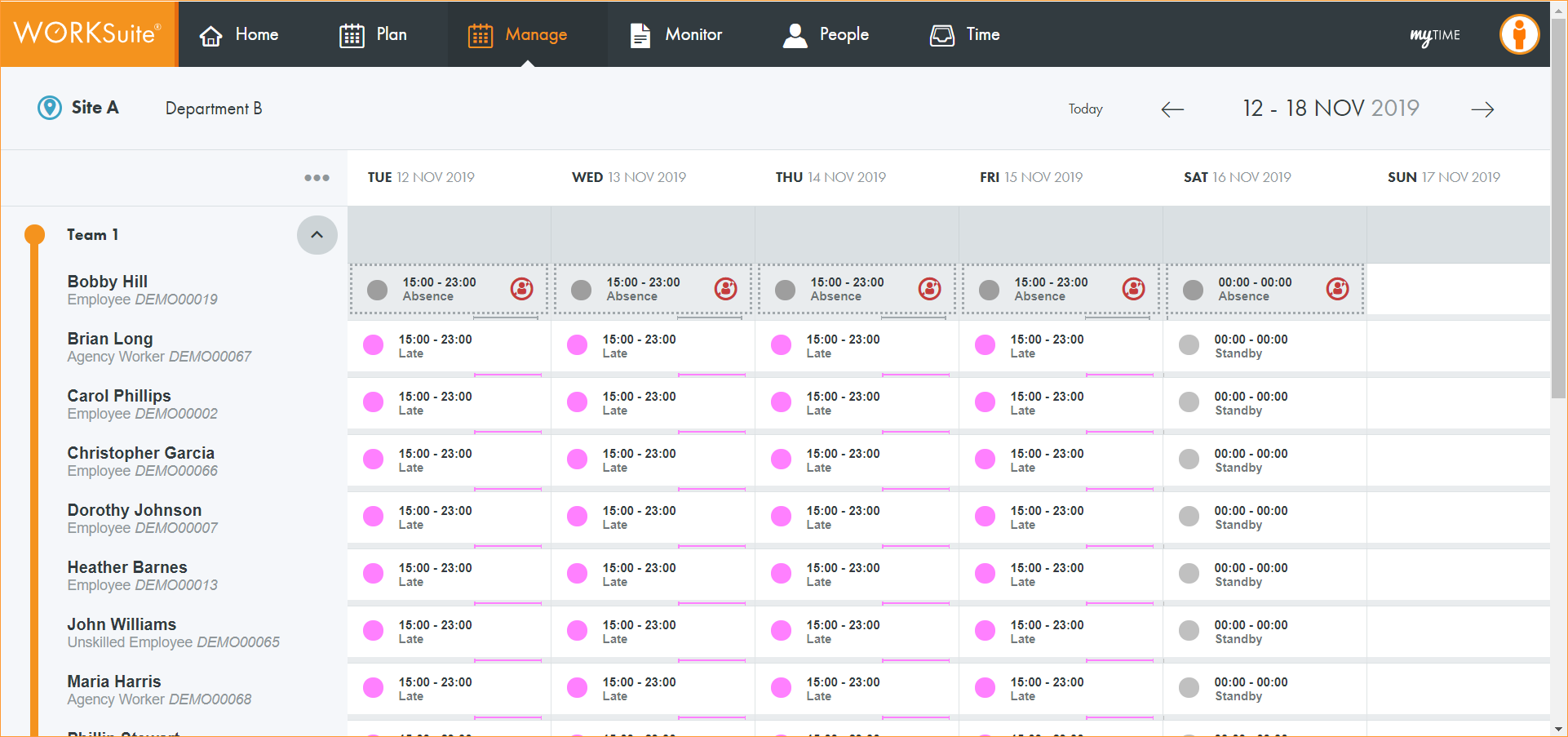
Use the Manage tab to view a summary of a selected employee’s activity.
For example, view the number of holiday hours that an employee has taken compared to their contracted holiday allowance.
- Open the Manage tab:
- Click
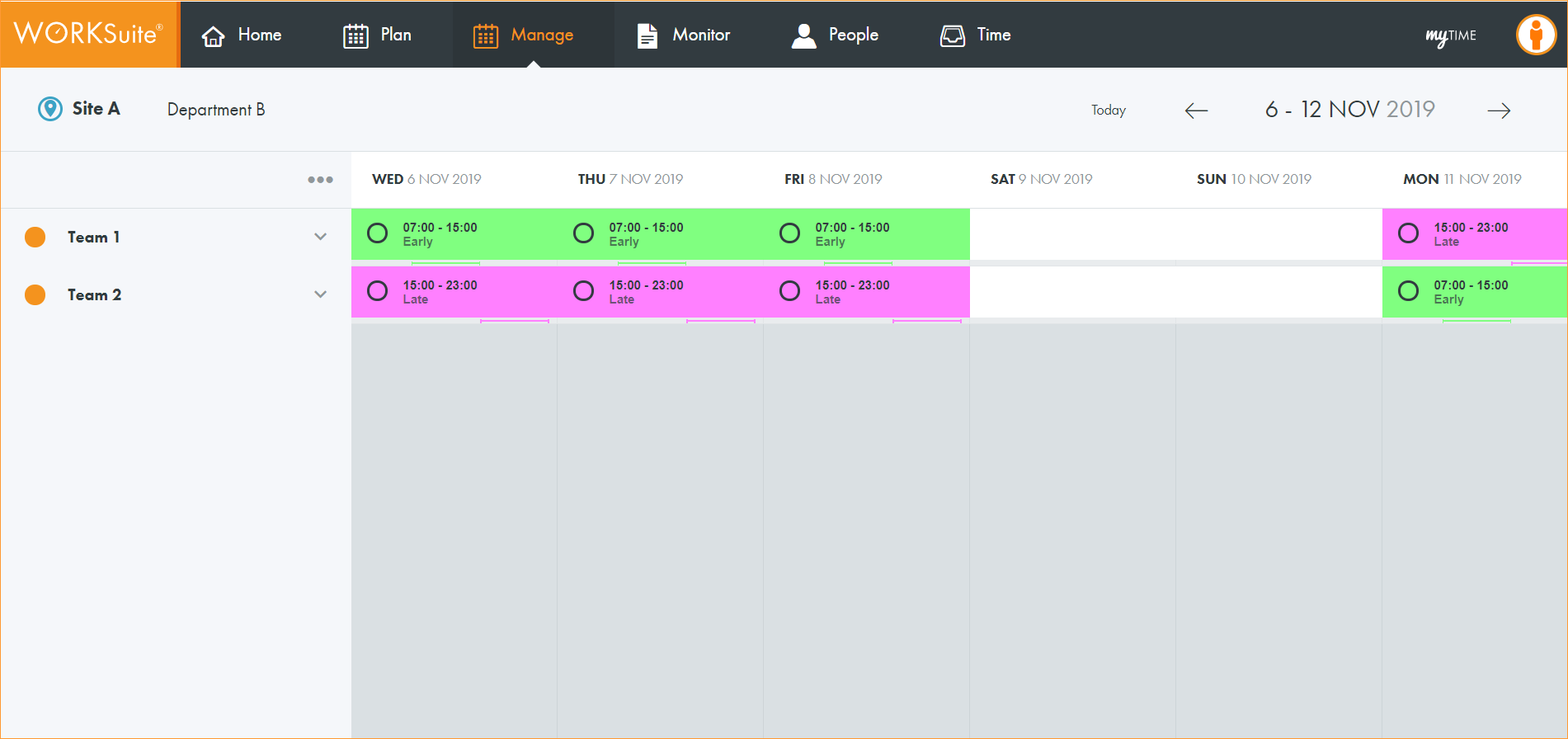
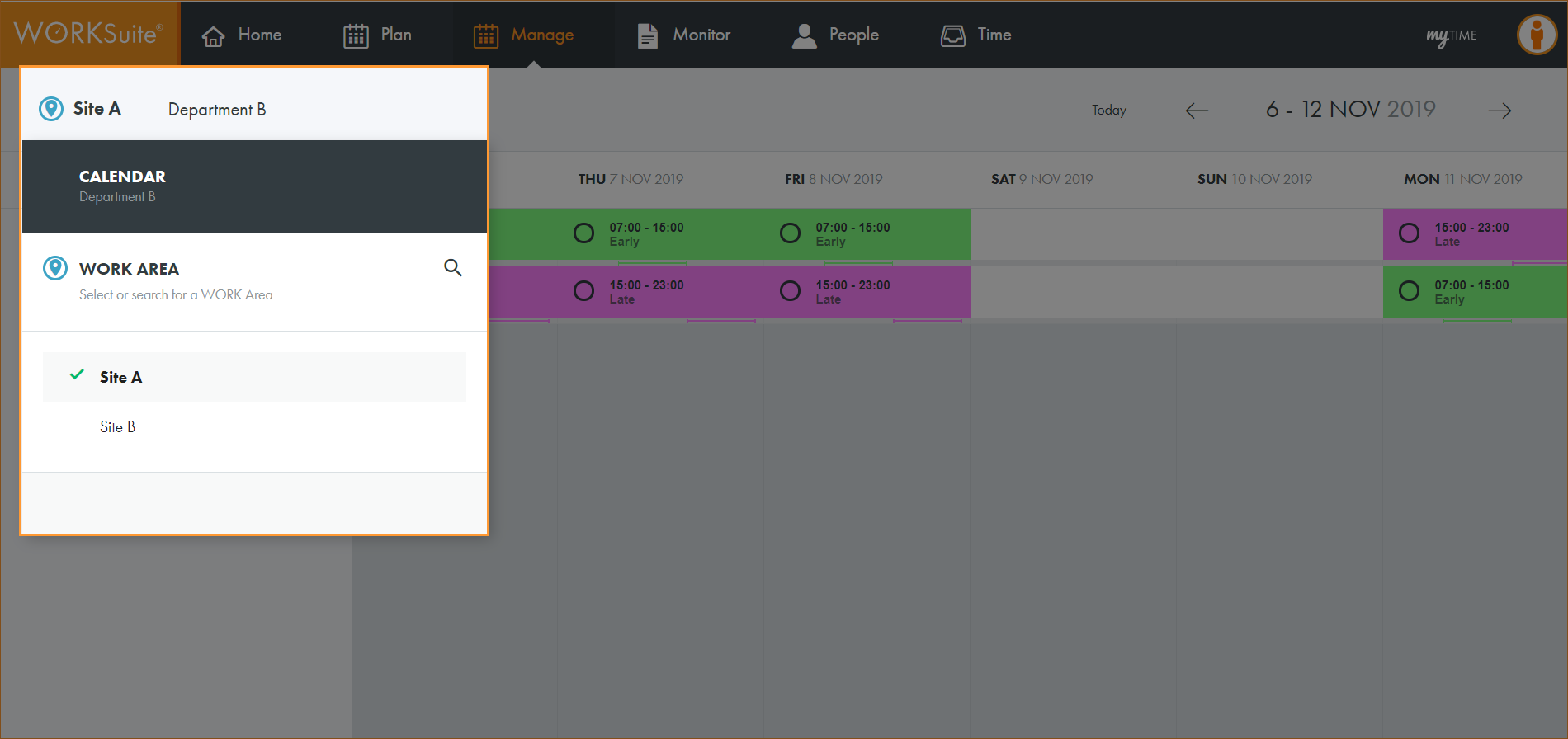
 and select the work area that you want to work with:
 - By default, your previously selected work area is preselected.
- If you only have access to a single calendar, this is pre-selected when the screen loads. There is no need to select a calendar.
- Select the calendar that you want to work with:
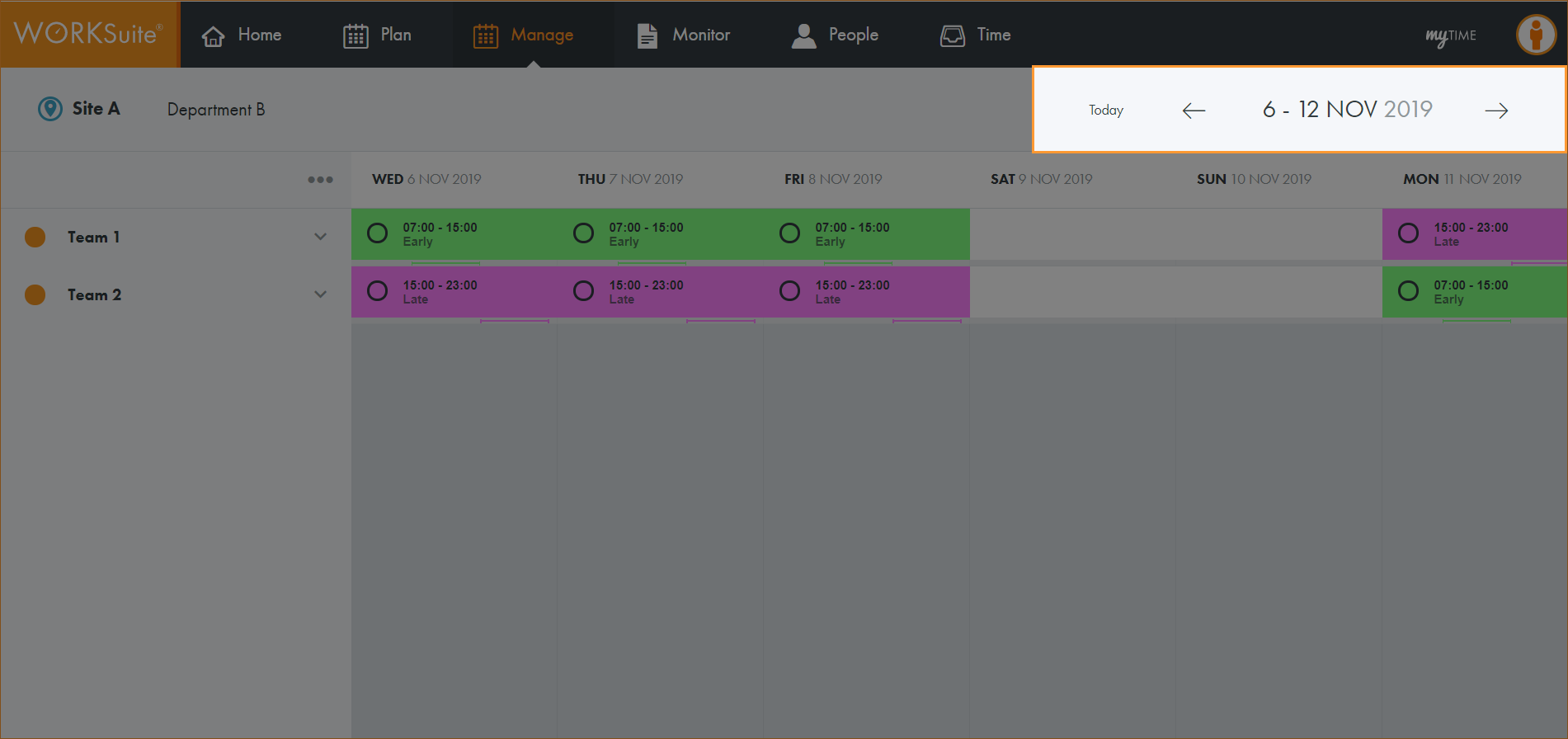
- Select Today or use the date navigation tools to select the dates that you want to view:
- You cannot navigate to a new week until the information for the week which is currently shown is fully loaded. The navigation buttons are temporarily disabled to prevent multiple weeks being loaded at the same time.
- The dates you select here influences the accounts summary period shown.
- Click the arrow next to your selected team to expand the team list.
- Hover over your selected employee and click
 to display this window:
 - Red. Henry is scheduled to work 2 hours more than his opening balance of 2192 hours and the bar is coloured red to alert you to this.
- Amber/Pale amber. Henry has not yet booked time off for all of his contracted holiday hours so the bar is highlighted amber and pale amber. The split between amber and pale amber indicates the proportion of hours/day logged compared to the opening balance.
- Black. If no opening balance is set for an employee (Reporting only accounts) then the bar is black. This is shown on Henry's sick days.
- Hover over
 in your selected listing to view the time period that applies to the information shown.
 - Click See full details to jump to the People tab and update the Employee Details record.
Note:
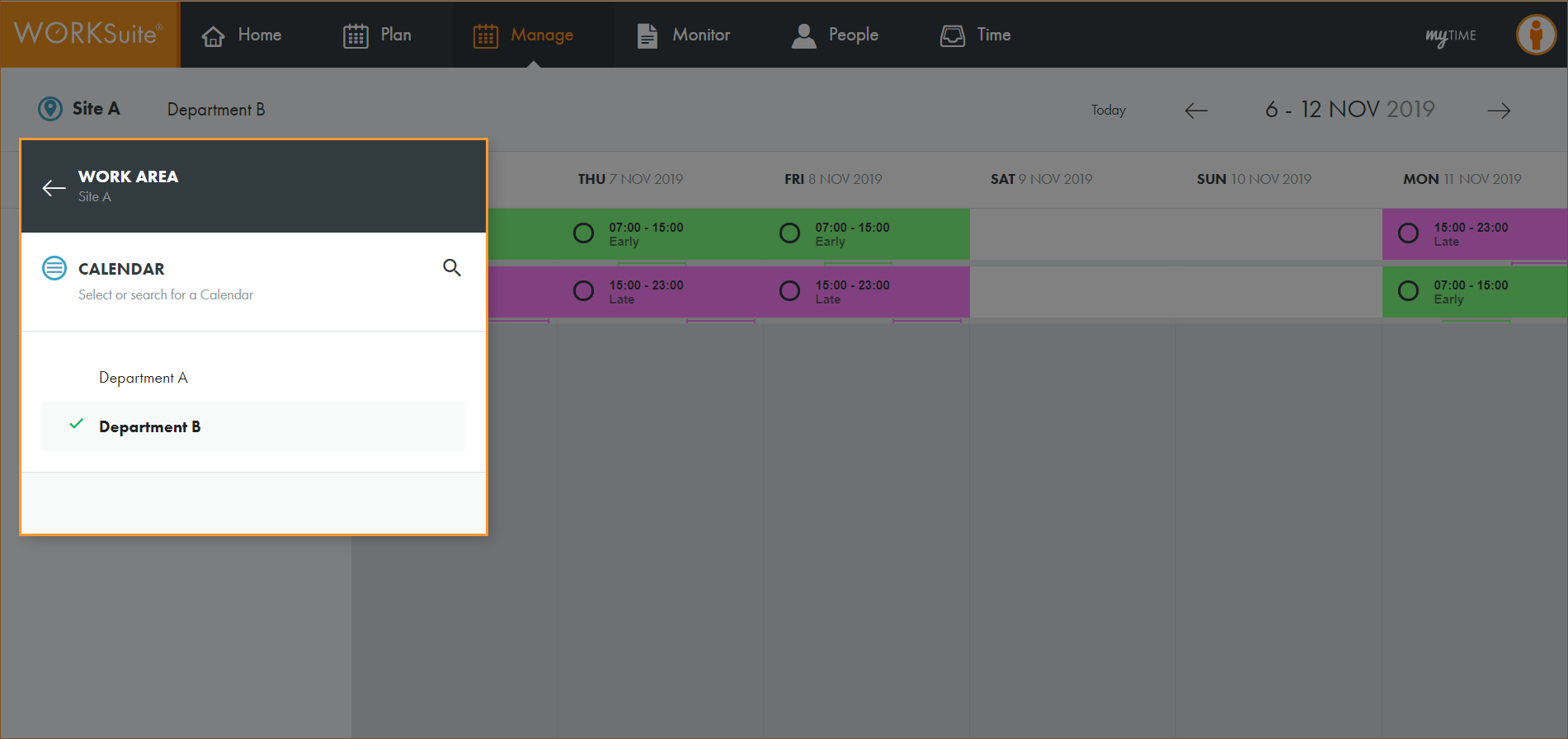
Note: By default, your previously selected calendar is preselected.
All teams published in the selected calendar are listed.
Note:
All employees in the selected team are displayed:
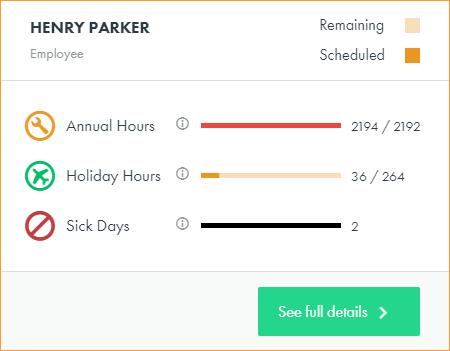
The popup window displays a summary of employee account activity with coloured bars highlighting the information shown. In this example the accounts of Annual Hours, Holiday Hours and Sick Days are used. The same principles apply to each of the accounts displayed:
Note: The account thresholds which determine how the coloured bars are displayed are configured to suit you.
Note: Accounts can be set to start at any month you choose. In this example we are looking at Henry Parker's account summary. Henry's Annual Hours are set to run from 1 January to 31 December. Henry's Holiday Hours have are set to run from 1 April to 31 March. So if w/c 1 January 2019 was selected instead of w/c 17 December 2018 a different Annual Hours summary would be shown but the same Holiday Hours summary would be shown.
See What are accounts? for help on setting up accounts and opening balances.